
🔄 Last updated: July 24, 2026
This free Google Sheets inventory template for small retail is the exact system I used for 18 months at gharstuff.com — 3 tabs, real formulas, automatic low-stock alerts, and expiry tracking that cut our waste by 68% at ₹0 cost.
What’s the best free Google Sheets inventory template for small retail?
Use a 3-tab structure (Master Inventory + Stock In + Stock Out) with SUMIF formulas to auto-calculate current stock. Add =IF(J2=0,"🔴 OUT",IF(J2<=K2,"🟠 REORDER","🟢 OK")) and conditional formatting for instant low-stock alerts. Full setup takes under 20 minutes. Costs ₹0 / $0. The pre-built template is in the free download below.
Thursday afternoon, 3pm. Vishal was flipping through the blue binder we used to track inventory — 47 pages of handwritten entries, crossed-out numbers, and at least three different spellings of “Amul Butter.” A supplier called asking what we needed. Vishal looked at the binder. Looked at me. Said, “Bhaiya, I have no idea what we actually have.”
That was 18 months before I moved to Zoho Inventory. I didn’t have ₹18,000 for Tally. I didn’t have ₹3,200/month for software subscriptions. What I had was Google Sheets — free, already on my phone, and something Vishal could actually update without me standing over his shoulder.
I built the Google Sheets inventory template for small retail use in one afternoon. Within two weeks, stockouts dropped from 11 per month to 3. Expiry waste fell by 68% — from ₹12,000/month to ₹3,800. Vishal started updating it himself every evening in under 2 minutes. We ran that spreadsheet for 18 months at gharstuff.com in Hisar, Haryana before the SKU count and manual update burden made Zoho Inventory worth the setup time.
This guide is that template — improved, explained, and ready to copy. It’s still what I recommend to any store owner who asks “where do I even start with inventory tracking?” According to the US Small Business Administration, poor inventory management is one of the top reasons small retail businesses lose cash flow — and the fix doesn’t require expensive software.
Free Download
AI Inventory Toolkit — Includes the Google Sheets Template
📚 What’s in this guide
Why a Google Sheets Inventory Template Before Dedicated Software
Every inventory software comparison eventually tells you to “just use proper software.” That advice is right — eventually. It skips the part where most small retail owners aren’t sure if they have a problem worth solving with software yet, and where dedicated tools cost $50–200/month on a store doing $8,000/month in revenue.
A free Google Sheets inventory template for small retail solves the immediate problem — you know what you have, you get alerted when you’re running low, and your staff can update it without training. That’s the actual problem on day one, not advanced analytics.
Google Sheets wins if you
- Have under 500 SKUs to track
- Need something working today at $0
- Want staff to update without training
- Need offline access on a phone
- Want to own your data with no subscription risk
Upgrade to Zoho Inventory when
- You exceed 500 active SKUs
- Manual entry takes 5+ hours/week
- You need automated expiry email alerts
- You need barcode scan integration
- Multiple staff editing causes data conflicts
The 3-Tab Structure — Why One Flat Sheet Breaks
Most people build one giant sheet with everything in it. After a month it becomes unreadable, formulas break when rows are added, and staff start making errors because they don’t know which columns to update. The free Google Sheets inventory template for small retail I’m sharing uses three separate tabs with defined roles:
| Tab name | What it does | Who updates it | Why it’s separate |
|---|---|---|---|
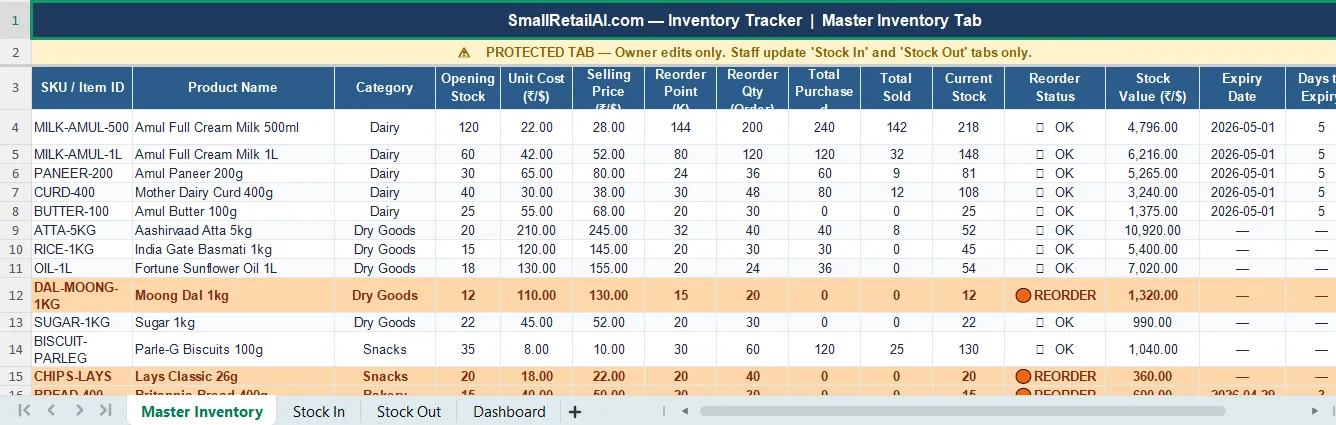
| Master Inventory | Product catalog + live calculated stock | Owner only (protected) | Formulas pull from other tabs — staff never touch this directly |
| Stock In | Running log of every purchase/delivery | Staff (Vishal) after each delivery | Clean entry log — one row per delivery batch |
| Stock Out | Running log of daily sales/usage | Staff updates end of each day | Current stock auto-calculates from both tabs |
💡 Vishal’s actual workflow: Every evening at 8pm, he opens the sheet on his phone. Goes to Stock In, enters what arrived that day. Goes to Stock Out, enters rough daily sales by category. Never touches Master Inventory. The dashboard updates automatically. Takes under 2 minutes once the habit is formed.
The 5 Formulas That Power This Google Sheets Inventory Template
These are already built into the downloadable template. Understanding them means you can fix or customise when needed — and they’re standard Google Sheets functions, not macros or scripts.
What it does: Searches the Stock In tab for every row where column B matches your product code (A2 in Master), then sums all quantities in column D. Every time Vishal logs a delivery in Stock In, this cell updates automatically. Place in column H of Master Inventory. Google’s official SUMIF documentation has the full syntax reference if you need to adapt this for a different column layout.
What it does: Same logic as Formula 1 but on the Stock Out tab. Sums all quantities sold for that product code. Place in column I of Master Inventory.
What it does: Opening Stock (G2) + Total Purchased (H2) − Total Sold (I2) = Current Stock (J2). This is the number that drives all your alerts. It updates the moment Vishal logs anything in Stock In or Stock Out. Place in column J of Master Inventory.
What it does: Checks Current Stock (J2) against your Reorder Point (K2). Shows 🔴 if completely out, 🟠 if at or below reorder level, 🟢 if fine. Place in column L of Master Inventory.
Logic order matters: Always check for zero first. If you check low stock first, out-of-stock items show “REORDER” instead of “OUT OF STOCK” — a subtle but confusing bug that’s easy to introduce and hard to spot later.
What it does: Current Stock (J2) × Unit Cost (E2) = current cash value of that product on your shelf. Sum the entire column to see total capital tied up in inventory. Useful when a supplier offers a bulk deal — you can quickly see if you have cash headroom before committing. Place in column M.
Setting Up Low-Stock Alerts — the Part Everyone Skips
The emoji in Formula 4 give you a text signal. Conditional formatting makes entire rows change colour — you can’t miss low stock at a glance even when scrolling through 300 SKUs on a small phone screen. This is what separates a useful Google Sheets inventory template for small retail from a spreadsheet you stop trusting after a week.
Step 1 — Select your data rows. In Master Inventory, select all rows from row 2 downward (not the header). Go to Format → Conditional formatting.
Step 2 — Out of stock rule (red). Under “Format cells if,” choose “Custom formula is.” Enter: =$J2=0. Set background to red (#FF4B4B), text to white. Click Done. Any product at zero stock turns the entire row red.
Step 3 — Low stock rule (orange). Add another rule. Formula: =AND($J2<=$K2,$J2>0). Background orange (#F97316). Catches anything at or below reorder point but not yet at zero.
Step 4 — Rule order matters. The red rule must be listed above the orange rule in the conditional formatting panel. Google Sheets applies rules top-down and stops at the first match. Drag to reorder if needed.
💡 Vishal’s morning routine after setup: Opens Master Inventory on his phone. Scans for red or orange rows. Red = call supplier now. Orange = add to this week’s order. The whole check takes 90 seconds. Stockouts dropped from 11/month to 3/month within the first two weeks of using this Google Sheets inventory setup.
Expiry Date Tracking — for Grocery and Perishable Retail
Add these three columns to the right side of your Master Inventory tab. They’re already included in the downloadable Google Sheets inventory template for small retail stores handling perishables:
| Column | Header | Formula / Input | Notes |
|---|---|---|---|
| N | Expiry Date | Manual — enter date per batch (2026-05-15) | Update when new batch arrives |
| O | Days to Expiry | =IF(N2="","",N2-TODAY()) |
Format as Number not Date — updates daily automatically |
| P | Expiry Status | =IF(O2="","",IF(O2<=0,"🔴 EXPIRED",IF(O2<=3,"🟠 CRITICAL",IF(O2<=7,"🟡 WARNING","🟢 OK")))) |
4-tier alert — matches Zoho Inventory colour coding |
⚠️ The honest limitation of Google Sheets expiry tracking: This system is passive — it shows you the status, but doesn’t send you alerts. You open the sheet and check column P every morning. That’s manageable for 50–100 perishable SKUs with consistent discipline. At 800+ SKUs with daily movement, the manual check becomes the weak link. That’s precisely why I eventually built the Python script on Zoho Inventory’s free API — it sends automatic alerts at 7am without anyone needing to remember to look.
For stores ready for automated alerts: the Zoho Inventory setup guide includes the full Python expiry alert script — free to download, runs automatically on Zoho’s free API at 1,000 calls/day.
The Dashboard Tab — One Screen That Tells You Everything
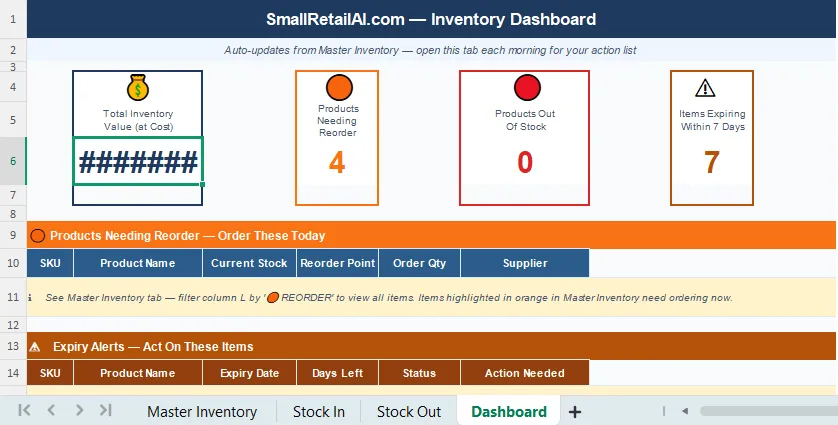
Add a fourth tab called “Dashboard.” These four formula cells give you a complete store overview without scrolling through hundreds of rows. This is one of the most underused features of any Google Sheets inventory template for small retail:
Total inventory value (at cost)
Products needing reorder
Products out of stock
Items expiring within 7 days
Replace ‘Master Inventory’ with your exact tab name if different. Column letters (M, L, O) match the structure in the downloadable template.
Complete Setup in 20 Minutes
Download and copy the Google Sheets inventory template
Enter your email in the download box below. Receive the AI Inventory Toolkit which includes the Google Sheets inventory template for small retail. Click “File → Make a copy” — saves to your Drive with all 4 tabs, formulas, and conditional formatting already configured. Skip to Minute 10.
Build from scratch
New Google Sheet. Four tabs: Master Inventory, Stock In, Stock Out, Dashboard. Master headers (row 1): SKU, Product Name, Category, Opening Stock, Unit Cost, Selling Price, Reorder Point, Total Purchased, Total Sold, Current Stock, Status, Stock Value, Expiry Date, Days to Expiry, Expiry Status.
Enter your first 20 products
Do not enter all 500 SKUs now. Start with your 20 best-sellers or most volatile items — things that run out or expire. Real data on 20 products beats a perfect empty system. Add the rest in batches over the following week.
Set reorder points for each product
Column K in Master. Reorder point = (average daily sales × supplier lead time in days) + safety stock. If you sell 10 units/day and your supplier takes 3 days, your reorder point is at least 30. The reduce stockouts guide covers the full formula in detail, and our dedicated reorder point formula for small retail breaks the calculation down with more worked examples.
Protect Master Inventory from accidental edits
Right-click the Master Inventory tab → Protect sheet → Only you can edit. Give staff “Viewer” access to the whole file. Share Stock In and Stock Out with “Editor” access separately. This prevents formulas breaking when Vishal accidentally edits the wrong cell.
Freeze headers + pin to phone home screen
View → Freeze → 1 row on every tab. On your phone, open the Google Sheets app and bookmark the file. That 2-second access is what makes the daily update habit actually stick.
When Your Google Sheets Inventory Template Stops Being Enough
Every “Google Sheets for inventory” guide ends with “and it scales forever!” It doesn’t. Here’s the honest breakdown for small retail:
| Situation | Google Sheets verdict | What to use instead |
|---|---|---|
| Under 500 SKUs, one location | ✅ Use it — works well | — |
| 500–2,000 SKUs, slow-moving stock | ✅ Workable with discipline | Consider Zoho Inventory free plan alongside |
| High-volume daily sales entries | ⚠️ Manual updates become a bottleneck | Zoho Inventory or Loyverse POS |
| 3+ staff editing simultaneously | ⚠️ Data conflicts become frequent | Zoho Inventory (proper database locking) |
| Barcode scanning at checkout | ❌ Not natively possible | Any POS with barcode integration |
| Automatic expiry email alerts | ❌ Manual check only | Zoho Inventory + Python alert script |
| Real-time POS sync | ❌ No live connection to POS | Shopify POS, Square, Loyverse |
| Multi-location stock transfers | ❌ Formula complexity compounds fast | Zoho Inventory paid tier |
For a full comparison of what comes next after outgrowing this Google Sheets inventory template for small retail, the Zoho Inventory vs Sortly comparison covers both upgrade options with verified pricing.
💰 When you’re ready to upgrade — Zoho Inventory free plan
Zoho Inventory’s free plan handles 1,000 SKUs, 50 orders/month, batch expiry tracking, automated reorder alerts, and API access for the Python expiry script. New users get $100 in Zoho Wallet credits.
Try Zoho Inventory Free → Get $100 CreditsReal Results From 18 Months Using This Google Sheets Inventory Template
| Metric | Before (notebook) | After Google Sheets |
|---|---|---|
| Stockouts per month | 11 | 3 — 73% reduction |
| Monthly expiry waste | ₹12,000/month | ₹3,800/month — 68% reduction |
| Vishal’s daily stock check time | 45 min (binder flipping) | 2 min (scan status column) |
| Time to answer “what stock do we have?” | 10–15 min | 10 seconds (dashboard tab) |
| Total monthly cost | ₹0 (binder + pens) | ₹0 (Google Sheets) |
The sheet worked until 800+ SKUs with high daily movement made manual updates unreliable. That’s when the upgrade made sense — not because the Google Sheets inventory template failed, but because the volume outgrew what a manual system can sustain. For the full story of what changed after moving to Zoho Inventory, the food waste reduction guide covers the complete before-and-after with real numbers.
FAQs — Google Sheets Inventory Template for Small Retail
Q1: Is there a free Google Sheets inventory template for small retail I can download right now?
Q2: What formulas do I need for automatic reorder alerts in a Google Sheets inventory template?
Q3: Why use 3 separate tabs instead of one flat sheet?
Q4: Can a Google Sheets inventory template track expiry dates for a grocery store?
Q5: How many SKUs can a Google Sheets inventory template for small retail handle?
Q6: Can my staff use this without accidentally breaking the formulas?
Q7: What’s the difference between a Google Sheets inventory template and Zoho Inventory?
Q8: Does this Google Sheets inventory template work on mobile?
📥 Free Download — Google Sheets Inventory Template + Full Toolkit
📥 Free Toolkit — Google Sheets Inventory Template + AI Inventory Kit
The pre-built Google Sheets inventory template for small retail (4 tabs, 5 formulas, conditional formatting, dashboard) is included in the AI Inventory Toolkit. Also includes the reorder point calculator, Zoho Expiry Alert Python script, AI Waste Tracker, ChatGPT Prompt Library, and WhatsApp Broadcast Templates.
Free. No spam. Unsubscribe anytime.
Start With the Sheet. Upgrade When It Breaks.
The most common mistake small retail owners make is spending three weeks evaluating software instead of spending 20 minutes setting up a working system today. A free Google Sheets inventory template for small retail is that 20-minute system.
- Copy the template today. Enter your top 20 products. Set reorder points. The red and orange rows will tell you everything you need to act on tomorrow morning.
- Add products in batches over 2–3 weeks. 20–30 SKUs per session during a quiet moment. Don’t try to migrate everything at once or you’ll abandon it by day two.
- Upgrade when the daily update takes more than 15 minutes. That’s the only signal that matters — not an arbitrary SKU number, not when someone tells you to. When the sheet costs more time than it saves, move to Zoho Inventory.
The upgrade path is well-documented. The Zoho Inventory setup guide walks through the full transition — and because Zoho’s free plan covers 1,000 SKUs at ₹0/month, you can run both systems in parallel during the handover with no cost increase.

About the Author
Rahul Saini
Grocery store owner in Hisar, India, running gharstuff.com since 2019 with 800–1,200 SKUs daily. I test AI tools in my real store — with real staff, real customers, and real consequences when something doesn't work. Every number on this site is from my actual store.
Read My Full Story →Related Articles
Last updated: April 2026. Formulas verified in Google Sheets April 2026. Author: Rahul Saini, SmallRetailAI.com.
Are you using a notebook, Excel, or Google Sheets for inventory right now? What’s your biggest frustration with it? Tell me in the comments — I read every one.